Blocking General Information Drug Updates
When changes are made in the Drug Folder, PharmaClik Rx may ask if you would like to block updates for the drug. When the Block Updates is turned ON, the following fields will be protected from future PharmaClik Rx updates:
- Generic Name
- Trade Name
- Strength
- Drug Form
- Manufacturer
- Colour
- High Alert
The date the drug was last updated will be displayed in the Drug Folder, in the Last McKesson field.
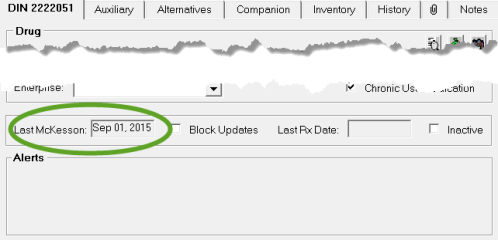 .;
.;
When an update is downloaded, a prompt indicating "Data has been changed. Would you like to turn the Change Save flag ON?":
- Press Yes to block automatic updates to any of the fields listed above; only do so if you have customized information in these fields. The Block Updates flag in the Drug Folder is turned ON. When PharmaClik Rx updates downloads future updates to these fields, you will be able to review the updates in Review Overrides and choose whether or not they should be applied.
- Press No to allow automatic updates to the fields. PharmaClik Rx updates will automatically apply any future updates to the fields. The Block Updates flag in the Drug Folder remains OFF.
Note: When updates are blocked, the data is still downloaded to PharmaClik Rx, but is not automatically applied to the drugs. A Review Overrides feature allows you to review the blocked downloads for each drug and choose whether or not to apply the updates.
You can also turn the Block Updates flag ON or OFF manually.
To turn the Block Updates flag on or off:
- Open the Drug Folder.
- Select the DIN tab.
- Do one of the following:
- If you wish to block updates, select the Block Updates checkbox. Your store will be responsible for keeping the drug information up to date.
- *RECOMMENDED* If you wish to receive updates for the drug, deselect the Block Updates checkbox.
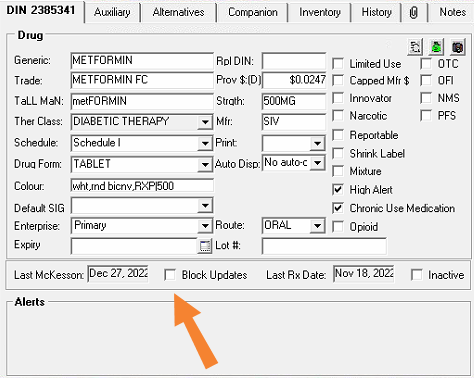
- Press the Save or OK button (the action button differs depending on how you accessed the Drug Folder).